![Unico-logo-4c.png]](https://helpcenter.unicosystem.com/hs-fs/hubfs/Unico-logo-4c.png?height=40&name=Unico-logo-4c.png)
The app is invite only.
|
As an Admin user of the app, you are able to invite members of your team to register and use the app’s tools in their work. |
|
It’s easy to do, you just need to fill in a few details about your team member, and they will receive an email to join. |
|
Depending on your user status, there are several different ways to add a new User, skip ahead by selecting below: |
For Contractor and Distributor Admins
From the left side bar of the app, navigate to Company > Users.

Click on the button titled ‘Add new user’ at the top right of the page.
A sidebar will appear on the right, where you will be prompted to input details about your team member.
These include:
- Their first and last name
- Their email
- Their role in your company, which you will choose from a drop-down menu depending on your business: Contractor or Distributor user.
Then, click on Send invitation email which will automatically send your team member an email invitation to join the platform.

The invited user will receive a link via email where they will be prompted to create and confirm their password.
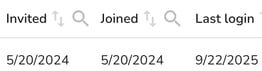
You will be able to see the status of your users from this Users tab, such as invite date, join date and last login.
for example:
For Rep Company Admins
First, confirm the company does not already exist in the system by navigating from the left side bar Rep Group → Company.
If the company is not yet in the system, they'll need to add the company by selecting the Add new company button.
You can learn more about adding a new company here.
Once the company is added:
To add a User, navigate the Rep Group from the left side bar → Users.
Click on the ‘Add new user’ button at the top right of the page. A sidebar will appear on the right, where you will be prompted to input details about your team member.
These include:
- Their first and last name
- Their email
- Their role in your company, which you will choose from a drop-down menu depending on your business: Rep Company Admin, Contractor Admin/User or Distributor Admin/User.
- Your email as their superior
- Your company, which you will find from a drop-down menu
Then, click on Send confirmation email which will automatically send your team member an email invitation to join the platform.
The invited user will receive a link via email where they will be prompted to create and confirm their password.
You will be able to see the status of your users by navigating to Rep Group → Users list from the left side bar.
For Unico Admins & Super Admins
Go into Unico Admin > Users on the app.
Click on the button titled ‘Add new user’ at the top right of the page. A sidebar will appear on the right, where you will be prompted to input details about your team member.
These include:
- Their first and last name
- Their email
- Their role in your company, which you will choose from a drop-down menu depending on your business: Rep Company Sales Manager or Admin , Contractor Admin/User or Distributor Admin/User.
- Your email as their superior
- User company, which you will find from a drop-down menu
Then, click on Send confirmation email which will automatically send your team member an email invitation to join the platform.
The invited user will receive a link via email where they will be prompted to create and confirm their password.
You will be able to see the status of your users by navigating to the Users list from the left side bar.