---
title: How Do I Add a Company?
description: "To add a new Contracting Firm, you must be one of the following: Distributor Admins Rep Group Admins Unico Admins or Super Admins To add a new Distributing Firm, you must be one of the following: Rep"
---
[Skip to content](https://helpcenter.unicosystem.com/knowledge/how-do-i-add-a-company#main-content)
English
Show submenu for translations
![Unico-logo-4c.png\]](https://helpcenter.unicosystem.com/hs-fs/hubfs/Unico-logo-4c.png?height=40&name=Unico-logo-4c.png)
- [Default HubSpot Blog](https://theoutlet.unicosystem.com/blog)
Open main navigation
Close main navigation
- [Default HubSpot Blog](https://theoutlet.unicosystem.com/blog)
- English
Show submenu for translations
- Go to www.unicosystem.com
Go to www.unicosystem.com
Hello. How can we help you?
- There are no suggestions because the search field is empty.
1. [Unico Help Center & Resources](https://helpcenter.unicosystem.com/knowledge?hsLang=en)
2. [UnicoSales App Help](https://helpcenter.unicosystem.com/knowledge/unicosales-app-help?hsLang=en)
3. [Setup Questions](https://helpcenter.unicosystem.com/knowledge/unicosales-app-help?hsLang=en#setup-questions)
# How Do I Add a Company?
To add a new **Contracting Firm**, you must be one of the following:
- [**Distributor Admins**](https://helpcenter.unicosystem.com/knowledge/how-do-i-add-a-company#dist-admins)
- [**Rep Group Admins**](https://helpcenter.unicosystem.com/knowledge/how-do-i-add-a-company#rep-admins)
- [**Unico Admins or Super Admins**](https://helpcenter.unicosystem.com/knowledge/how-do-i-add-a-company#unico-super-admins)
To add a new **Distributing Firm**, you must be one of the following:
- [**Rep Group Admins**](https://helpcenter.unicosystem.com/knowledge/how-do-i-add-a-company#rep-admins)
- [**Unico Admins or Super Admins**](https://helpcenter.unicosystem.com/knowledge/how-do-i-add-a-company#unico-super-admins)
For more information on permissions, check out [this article](https://helpcenter.unicosystem.com/knowledge/user-permissions-what-do-i-have-access-to?hsLang=en).
#### For Distributor Admins
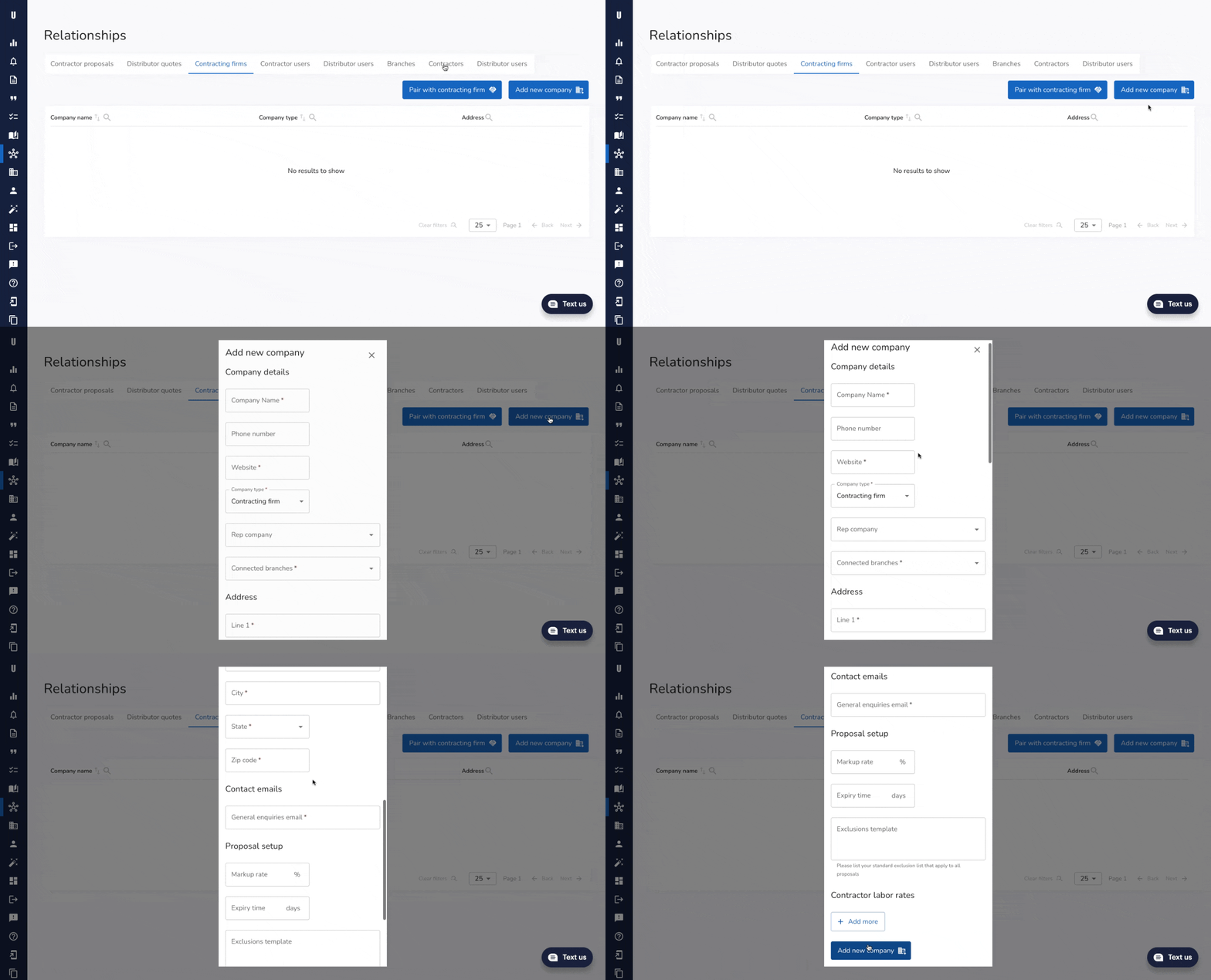
Head to the **Relationships page** from the left side bar and tab over to **contracting firms**. Here, you'll see all the firms you're already paired with.
Provided the firm is not already added, you can **add a new company** by selecting the **Add new company button** on the top right corner**.**
****
*Note: Adding a new contracting firm as a distributor will **automatically [pair](https://helpcenter.unicosystem.com/knowledge/i-am-a-distributor-how-do-i-see-and-pair-with-my-contractors?hsLang=en)** you with them.*
#### For Rep Company Admins
Head to the **Relationships page** from the left side bar and tab over to **contracting** or **distributor firms**, depending on who you're adding.
First, confirm the company does not already exist in the system when looking at your list of firms.
Note: As there are a lot of companies that go by abbreviation, ***be sure to search both the acronym and full company name*** to avoid duplicates.
*For example: M&M might be input as Mars and Murrie.*
***If the company is not yet in the system***, you'll need to **add the company** by selecting the **Add new company button** on the top right corner**.**
****
A window will appear on the right where you will be prompted to input the following details:
- **Company name** (be sure to input the full company name)
- **Phone number**
- **Website**
- **Company Type** (make sure to adjust the company type accordingly).
- **Your Rep Company**
- **Address details**
- **Company contact emails** (required - these can be generic company emails)
- [**Proposal Setup**](https://helpcenter.unicosystem.com/knowledge/what-are-all-the-components-of-proposal-setup?hsLang=en) (optional)
Once all data is input, hit the **Add New Company** button at the bottom.
#### For Unico Admins & Super Admins
From the left side bar, head to **Unico Admin** → **Companies.**
First, confirm the company does not already exist in the system by searching through your list of firms via the search bar.
Note: As there are a lot of companies that go by abbreviation, ***be sure to search both the acronym and full company name*** to avoid duplicates.
*For example: M&M might be input as Mars and Murrie.*
***If the company is not yet in the system***, you'll need to **add the company** by selecting the **Add new company button** on the top right corner**.**
****
A sidebar will appear on the right where you will be prompted to input the following details:
- **Company name** (be sure to input the full company name)
- **Phone number**
- **Website**
- **Company Type**
- **Your Rep Company**
- **Address details**
- **Company contact emails** (required - these can be generic company emails)
- [**Proposal Setup**](https://helpcenter.unicosystem.com/knowledge/what-are-all-the-components-of-proposal-setup?hsLang=en) (optional)
Once all data is input, hit the **Add New Company** button at the bottom.
- [Frequently Asked Questions](https://helpcenter.unicosystem.com/knowledge/frequently-asked-questions?hsLang=en#main-content)
- [Homeowner FAQs](https://helpcenter.unicosystem.com/knowledge/frequently-asked-questions?hsLang=en#homeowner-faqs)
- [Professional FAQs](https://helpcenter.unicosystem.com/knowledge/frequently-asked-questions?hsLang=en#professional-faqs)
- [Technical Specifications](https://helpcenter.unicosystem.com/knowledge/technical-specifications?hsLang=en#main-content)
- [10 - General Information](https://helpcenter.unicosystem.com/knowledge/technical-specifications?hsLang=en#10-general-information)
- [20 - Engineering Specifications](https://helpcenter.unicosystem.com/knowledge/technical-specifications?hsLang=en#20-engineering-specifications)
- [30 - Installation & Maintenance](https://helpcenter.unicosystem.com/knowledge/technical-specifications?hsLang=en#30-installation-maintenance)
- [40 - Application & Sizing](https://helpcenter.unicosystem.com/knowledge/technical-specifications?hsLang=en#40-application-sizing)
- [Technical Notes](https://helpcenter.unicosystem.com/knowledge/technical-specifications?hsLang=en#technical-notes)
- [Replacement Guides](https://helpcenter.unicosystem.com/knowledge/replacement-guides?hsLang=en)
- [Drawings & Submittals](https://helpcenter.unicosystem.com/knowledge/drawings-submittals?hsLang=en#main-content)
- [Blower Modules (1 - 5 ton)](https://helpcenter.unicosystem.com/knowledge/drawings-submittals?hsLang=en#blower-modules-1-5-ton)
- [Coil Modules (1 - 5 ton)](https://helpcenter.unicosystem.com/knowledge/drawings-submittals?hsLang=en#coil-modules-1-5-ton)
- [Vertical Up Flow FCU](https://helpcenter.unicosystem.com/knowledge/drawings-submittals?hsLang=en#vertical-up-flow-fcu)
- [Accessories](https://helpcenter.unicosystem.com/knowledge/drawings-submittals?hsLang=en#accessories)
- [Obsolete Parts](https://helpcenter.unicosystem.com/knowledge/obsolete-parts?hsLang=en#main-content)
- [Discontinued Parts Bulletins](https://helpcenter.unicosystem.com/knowledge/obsolete-parts?hsLang=en#discontinued-parts-bulletins)
- [Discontinued Parts Drawings & Submittals](https://helpcenter.unicosystem.com/knowledge/obsolete-parts?hsLang=en#discontinued-parts-drawings-submittals)
- [Videos](https://helpcenter.unicosystem.com/knowledge/videos?hsLang=en#main-content)
- [Why Choose a Unico System](https://helpcenter.unicosystem.com/knowledge/videos?hsLang=en#why-choose-a-unico-system)
- [Installation](https://helpcenter.unicosystem.com/knowledge/videos?hsLang=en#installation)
- [Product](https://helpcenter.unicosystem.com/knowledge/videos?hsLang=en#product)
- [UnicoSales App Help](https://helpcenter.unicosystem.com/knowledge/unicosales-app-help?hsLang=en#main-content)
- [How the UnicoSales App Works](https://helpcenter.unicosystem.com/knowledge/unicosales-app-help?hsLang=en#how-the-unicosales-app-works)
- [Setup Questions](https://helpcenter.unicosystem.com/knowledge/unicosales-app-help?hsLang=en#setup-questions)
- [General FAQ's](https://helpcenter.unicosystem.com/knowledge/unicosales-app-help?hsLang=en#general-faqs)
- [Contractors](https://helpcenter.unicosystem.com/knowledge/unicosales-app-help?hsLang=en#contractors)
- [Distributors](https://helpcenter.unicosystem.com/knowledge/unicosales-app-help?hsLang=en#distributors)
- [Rep Companies](https://helpcenter.unicosystem.com/knowledge/unicosales-app-help?hsLang=en#rep-companies)
- [Default HubSpot Blog](https://theoutlet.unicosystem.com/blog)
[](https://www.unicosystem.com)
Help Center
Copyright © 2026, Unico Inc.