![Unico-logo-4c.png]](https://helpcenter.unicosystem.com/hs-fs/hubfs/Unico-logo-4c.png?height=40&name=Unico-logo-4c.png)
The proposal setup section is for contractors to set up all custom templates for:
- Pricing & rates
- Non-Unico equipment
- Non-Unico templates
- Custom Contractor Branding
- Proposal copy templates for the homeowner
Once all of these items have been set up, you'll be able to pull them up when on the Project page (page 7) of the Fastquote.
Skip ahead here if you'd like to see a how-to video of the proposal setup.
Pricing & Rates
Navigate to Proposals from the left side bar and then select the Settings tab
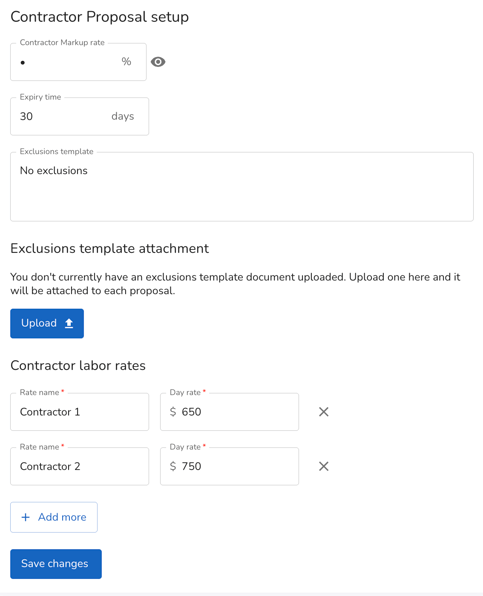
Here is where you find your contractor proposal setup, including your company’s markup rate, expiry time, exclusions and contractor labor rates.
You can learn more about setting up pricing and rates here.
Non-Unico Equipment
A contractor can build up a template of all the products & items they use along with Unico so they can access it everytime they're building a fastquote.
Head to Proposals from the left side bar → Non-Unico equipment.
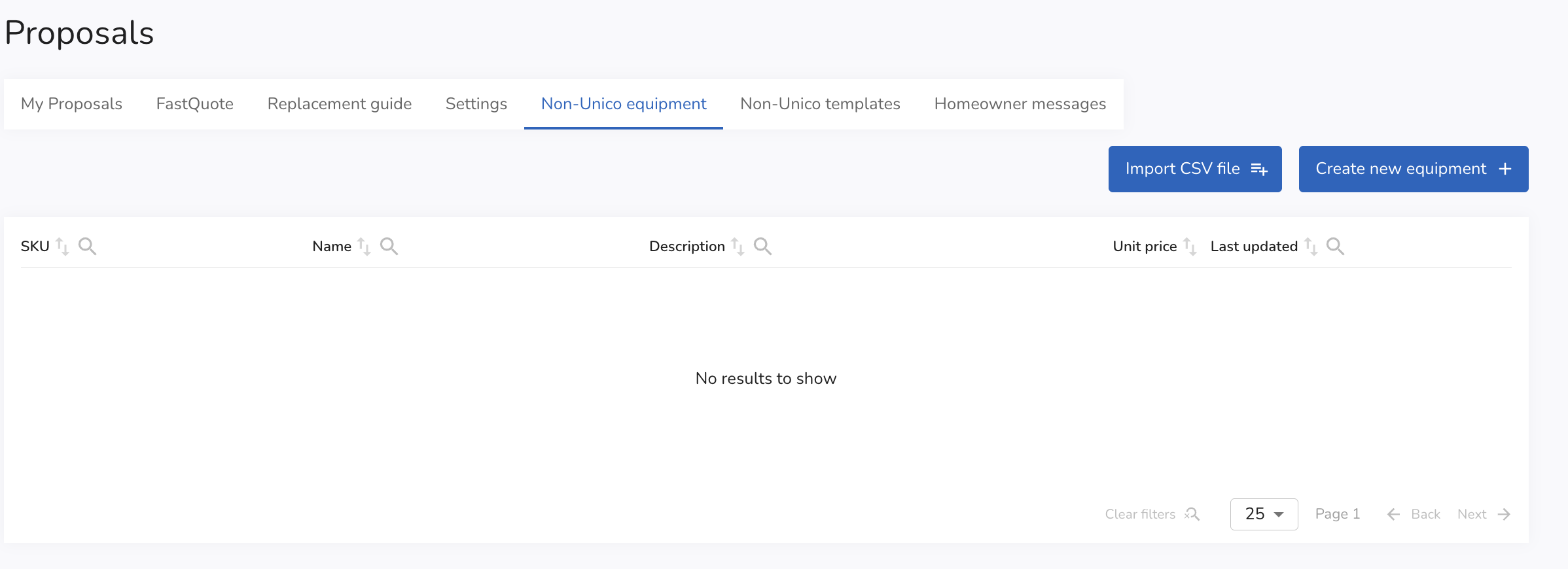
To enter an item individually, select Create new equipment.
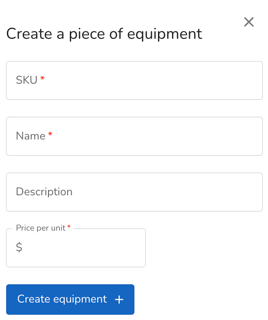
You'll need to input the SKU, product Name, and Price per unit. You can also enter the product manufacturer in the description field.
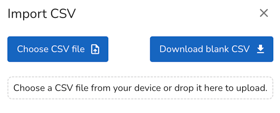
To upload items in bulk, you'll need to have a or create a spreadsheet of the items that can be downloaded into CSV format.
The headers on your spreadsheet should be in the order:
SKU / Name / Description / Unit Price
Note: You can also select "Download blank CSV" and open via google sheets or excel in order to input your items onto this blank sheet template. Once your list is built, save or download as CSV.
Once you have your CSV file, hit Import CSV file.
A list will pull up of all the items on your file along with a total count of how many items are on your list. Review the list to make sure the data looks correct and then hit Upload __ Items.
Non-Unico Templates
Once your non-Unico items are added, you can then create different templates with select items. Head to Proposals → Non-Unico templates. Create  and name the template and hit save.
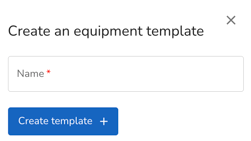
To add items to this template, simply hit the edit button. You'll be pulled to a new screen where you'll see your full list of non-Unico equipment. From here, select the add button to add each item you'd like to your select template.
Custom Contractor Branding
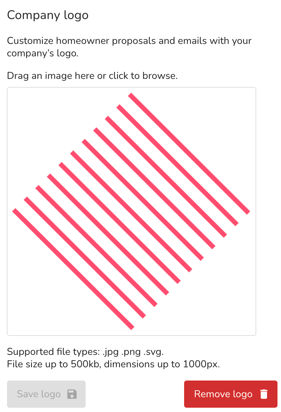
Contractors can set up their branding so that it appears on homeowner proposals.
From the left side bar, head to Company → Profile.
You'll see the 'add your logo' box via the Company Logo field on the right. Be sure to hit save once added.
.
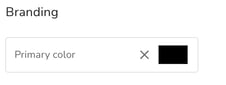
Scroll to the bottom of the page to see the Branding field where you can select your primary brand color. Be sure to hit 'save changes' once done.
Proposal Copy
Proposal copy is the written copy for the email that a contractor writes for the homeowner when sending a proposal.
Instead of having to write a new email each time you're building a Fastquote, you can easily setup template(s).
Head to Proposal Setup → Homeowner messages. Select add new.
Enter the email copy as you'd like. Hit Save message template.
You'll now be able to pull up the template when on the Project step of the Fastquote.
Proposal Setup Video